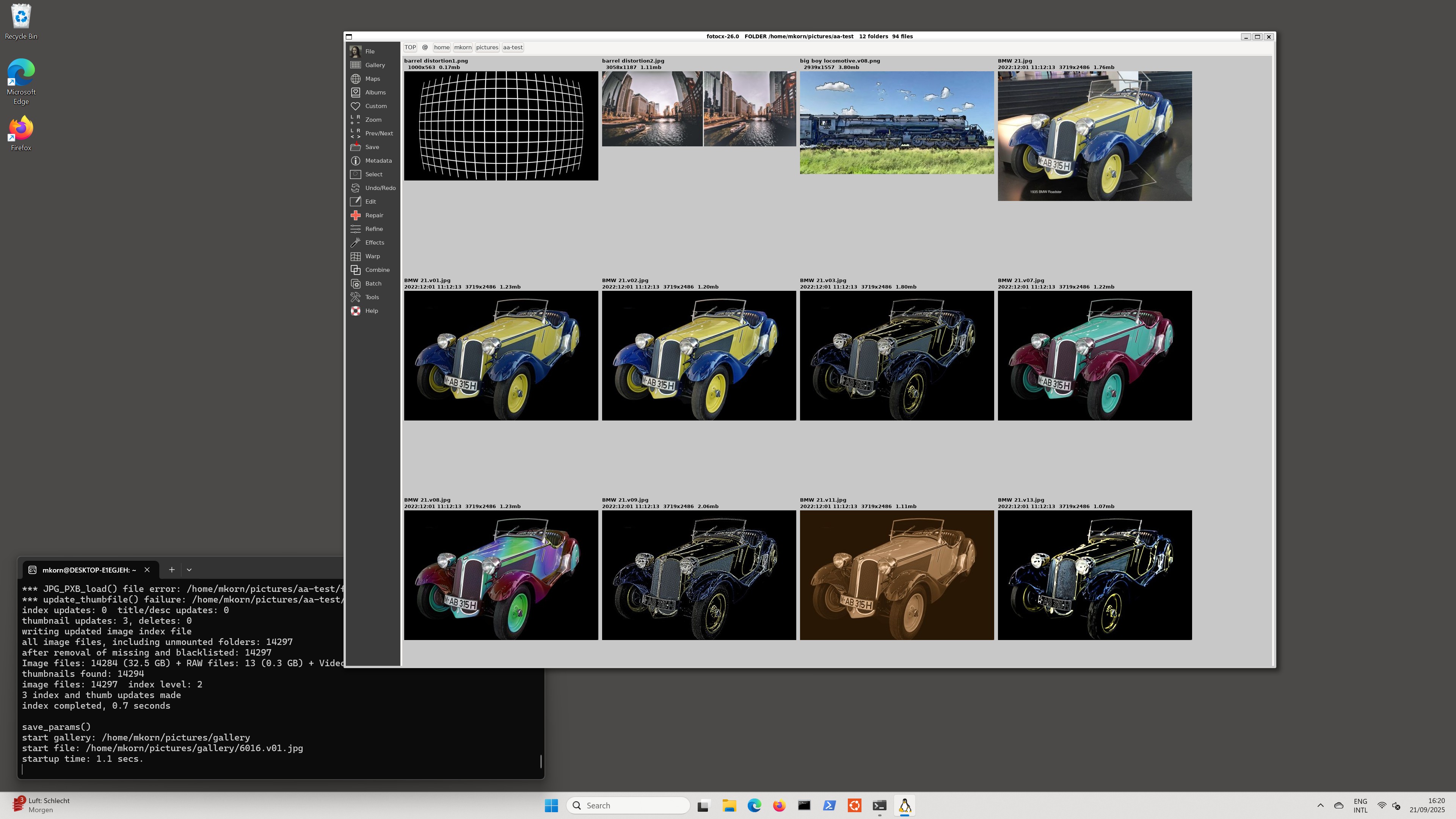
Fotocx for Windows 11
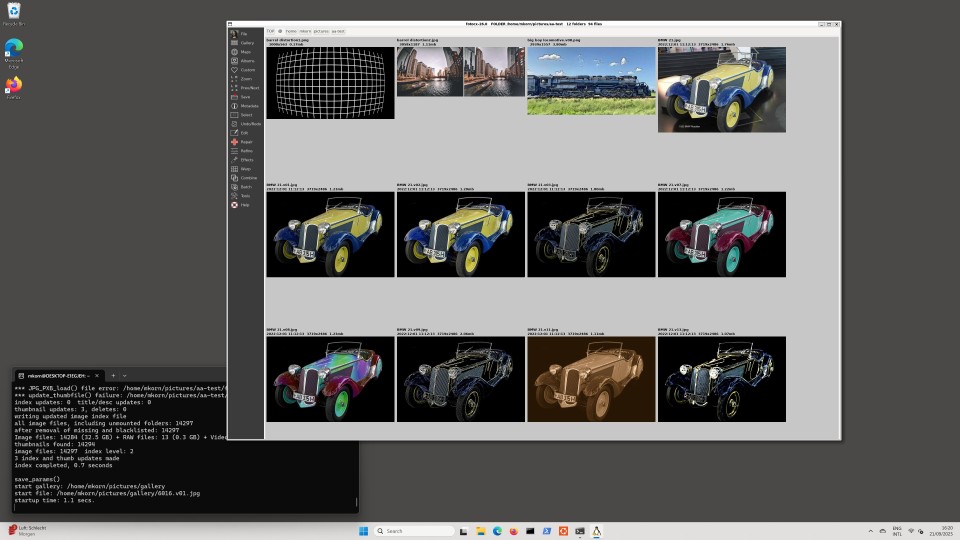
click to enlarge
Fotocx can be used in Windows 11 by installing Windows Subsystem for
Linux 2, or WSL2. There is ample documentation in the internet about
how to do this - be sure to use a recent document, since some
old/obsolete documents are left hanging around. Fotocx uses
lots of memory when editing large image files, so your computer
should have at least 16 GB memory, and preferably 32 GB. You should
have some basic Linux knowledge for this exercise. If not, you may
still be clever enough to make it work.
If your image files reside in the Windows file system (NTFS), Fotocx
will be very slow.
Here are a few benchmarks to illustrate the problem.
file system used by
Fotocx
Windows Linux
initial index of 14377
files
1139 sec. 85.2 sec.
startup time - no image
index
0.2 0.2
-
index old files
only
24 0.3
- old +
search for new
573 1.1
show gallery having 2143
images
62 < 1
search time - indexed
parameter
368 < 1
- non-indexed
parameter
530 13
Retouch a 50 megapixel
image
< 1 < 1
NTFS is reasonable only if you have fewer than about 500 image
files. Therefore move your image files to the Linux file system. You
can still access them using Windows File Explorer and other Windows
apps, so nothing is lost. Microsoft actually advises developers to
put their project files in the Linux file system for better
performance. Use the 'Linux' icon in File Explorer to access your
home folder in the Linux file system. Add a Pictures folder if
needed, and move your image files there.
Installing Fotocx on WSL2 is the same as for any other Linux:
Download the Fotocx binary package file from https://kornelix.net
In the Linux terminal:
$ cd
/mnt/c/Users/<user>/Downloads # go to
Windows downloads folder
$ tar -xzf
fotocx-xxx-bin.tar.gz # unpack
package to folder fotocx
$ cd fotocx
# go to
folder fotocx
$ chmod u+x install.sh
# make install script executable
$ ./install.sh
# run the
script, install fotocx
$ fotocx
# start Fotocx
You may need to restart the Linux window for the last step to
work.
Fotocx will not start if any required library files are missing. The
resulting error message names the first missing file encountered.
Install the relevant package using
$ sudo apt install <package-name>
and start Fotocx again.
When Fotocx starts, it may ask you to install missing "outboard"
programs that are used by Fotocx, e.g. dcraw and exiftool. Use the
package installer as above and start Fotocx again.
When Fotocx starts, you are asked for the location of your image
files. Input one or more folders, e.g. /home/<user>/Pictures.
The index process will begin and may take a few minutes if you have
many thousands of image files.
Read the introductory parts of the user guide (key F1). Fotocx has
deep functionality. Do not expect to master Fotocx in a few minutes.